To summarize a PDF on iPhone, first open the file and confirm its text can be selected. Decide whether you need an overview, key points, or questions. Then extract the relevant text into a summarizer, review the output beside the PDF, and verify names, numbers, quotations, tables, and conclusions against the original before using the notes.
Disclosure and evidence: Heni Hazbay creates Summarise Visually and may benefit if readers download or subscribe. This guide was prepared with AI assistance and reviewed against Apple documentation plus current first-party project and release-archive evidence. It does not rely on a current-device walkthrough or inspection of an App Store-delivered binary.
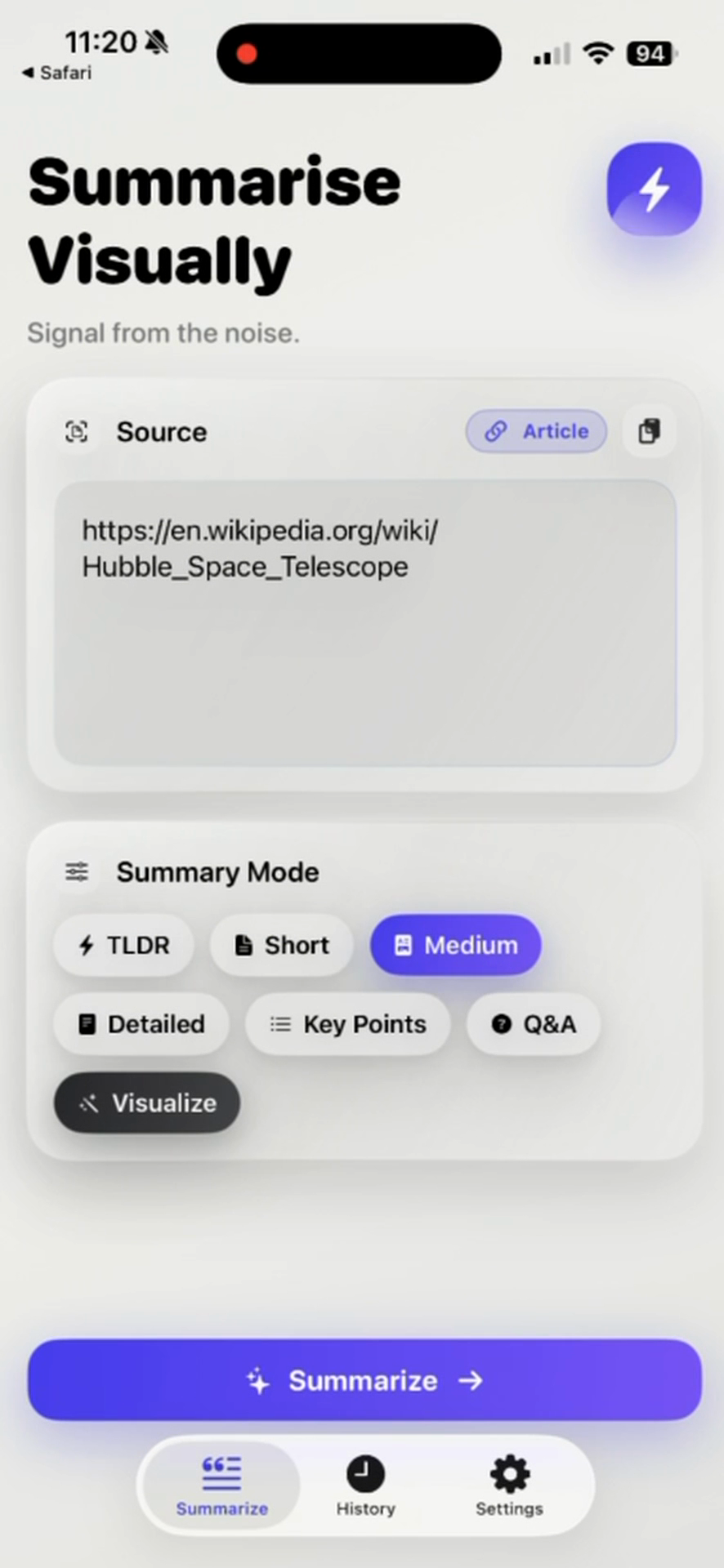
A source-checked PDF workflow
- Choose the result you need. Decide whether you want a short overview, a set of key points, study questions, or notes from one section. A precise goal makes omissions easier to notice.
- Inspect the PDF before summarizing it. Open the file, record its title and author, and try selecting a sentence. Selectable text is a useful eligibility check, but it does not prove that columns, tables, or equations will preserve their meaning.
- Reduce the scope. Note the relevant pages and headings. For a long document, work section by section so each note can retain a page or section reference.
- Move only readable text through a documented route. Use the current iPhone share or action sheet when an appropriate destination appears. If it does not appear, do not infer that the installed app supports the route.
- Generate the chosen format. Keep the PDF open beside the result. A concise result is a first pass, not a replacement for the document.
- Check consequential details. Compare names, dates, quantities, quotations, claims, tables, equations, and conclusions with the exact source location.
- Save provenance with the notes. Keep the file name or stable URL, version, access date, and pages covered so another reader can reproduce the check.
Apple maintains a current guide to sharing content in iPhone apps. Available actions depend on the source, content, iOS version, and installed apps, so the exact menu must be checked on the device used.
Using Summarise Visually
The inspected version 4.2 project includes PDF handling in both its Share and Action extensions. The code accepts PDF input, uses PDFKit to extract available selectable text, and hands that text to the main app. This supports a text-based PDF workflow; it does not show that columns, tables, equations, or other layout details survive intact.
A matching local version 4.2/build 4.3 release archive contains both extensions. Both compiled binaries link PDFKit and their matching symbols include extractPDFText.
Apple’s public lookup response reports marketing version 4.2, but it does not expose the build number or binary identity. The local archive is therefore strong release evidence, not conclusive proof about the currently installed App Store binary. Confirm that the option appears on the installed iPhone before following the route.
If the option appears, open a text-based PDF, use the iOS share or action sheet, choose Summarise Visually, continue in the app, and select the output mode that matches the task. Key Points and Q&A are useful candidate formats, but availability and access terms should be checked in the installed app.
The extensions also contain a separate shared-image branch that uses Apple Vision text recognition. That branch does not establish optical character recognition for pages inside an image-only PDF. An image-only scan needs a separate, verified text-recognition step before this PDF workflow can use readable text.
See the current PDF product workflow for capability and access details. When the source is academic, use the research-paper product workflow to keep method, findings, and limitations separate.
Evidence and review status
This guide was reviewed using source-code inspection, static release-archive inspection, and Apple’s public version metadata. No current-device walkthrough was completed, no App Store-delivered package was inspected, and no PDF result was captured for this guide. Confirm the share or action-sheet destination on the iPhone and installed app version being used, especially when the workflow depends on extension availability.
Bounded example, not a product result
Consider an original two-page course handout with three prose sections, five numbered facts, one small table, and one stated limitation. A reproducible record would include the source file hash, pages supplied, device and app build, selected mode, exact unedited result, and a claim-by-claim comparison. This guide does not supply or invent such a result; it defines what a later device walkthrough should capture.
How to check the result
Create a compact audit beside the source:
| Result statement | PDF location | Check |
|---|---|---|
| Main claim | Heading and page | Does the wording preserve scope and uncertainty? |
| Number or date | Exact sentence or table cell | Is the value, unit, and comparison correct? |
| Quotation | Exact page | Is it verbatim and attributed to the right speaker? |
| Conclusion | Discussion or conclusion section | Does the note add a claim the author did not make? |
Correct the notes from the PDF itself. Do not treat agreement between two generated sentences as verification. For a reusable review method, follow the guide to checking AI summary accuracy.
PDF limitations to check
- Selectable text can still arrive in an unexpected reading order when a PDF uses columns, sidebars, headers, or footnotes.
- Tables, equations, figures, references, annotations, forms, and password-protected files need direct inspection.
- The PDFKit branch does not apply Vision recognition to image-only PDF pages; the separate shared-image branch is a different input path.
- A generated summary can omit context, confuse a heading with a claim, or overstate a conclusion.
- System menus and available destinations can vary by iOS version, source app, file provider, and installed build.
Frequently asked questions
Can I summarize a PDF directly from the Files app on iPhone?
The current project and matching release archive implement a PDF extension handoff, but installed availability has not been confirmed for this guide. Check whether Summarise Visually appears in the share or action sheet for a text-based PDF. If it does not, do not assume the route is available.
What should I do if I cannot select text in a PDF?
Treat it as a likely image-only scan. Use a separate, verified text-recognition process and compare the recognized text with the page before summarizing it. The verified PDF branch does not OCR pages inside the PDF.
Which format fits an overview, key points, or study questions?
Choose a prose mode for an overview, Key Points for a compact source map, or Q&A for candidate questions. None of these formats guarantees complete or correct coverage.
Will tables, equations, footnotes, and references appear correctly?
Not reliably enough to assume. Inspect each of those elements in the original and retain page references in your working notes.
How should I check an AI-generated PDF summary?
Verify every consequential name, number, quotation, claim, table, and conclusion against the exact page or section. Keep the source open while correcting the notes.
PDF workflow sources
- Apple, “Share content in apps on iPhone”. This is the system-workflow source to recheck during final device review.
- Apple, iTunes Lookup response for Summarise Visually. Accessed July 14, 2026; it reports version 4.2 but no public build identity.
- First-party project and archive evidence: both inspected extension controllers use
UTType.pdf, PDFKit extraction, and an app-group handoff; the matching version 4.2/build 4.3 archive contains corresponding compiled evidence. The Methodology explains how capability claims are reviewed.
Related reading: how to check AI summary accuracy, research paper summarizer for iPhone, study workflows, the Methodology, and the Editorial Policy.