Summarise Visually can turn a text-based PDF on iPhone into a first-pass summary for study or review. Share a text-based PDF through the iOS extension handoff, choose a summary mode, and check every consequential point against the original document. The current version 4.2 project and matching version 4.2/build 4.3 release archive implement that extension handoff; confirm the option appears in your installed version.
Premium access: In the reviewed current build, initial summarization and mode changes require Premium.
What this workflow does
The current source implements a specific handoff. Both iOS extension controllers check UTType.pdf; the PDF branch creates a PDFKit PDFDocument and reads its available string. It extracts available PDF text locally, writes the shared content to the app group, and transfers that text to the main app. The main app then uses the same summary-mode workflow as other supported text.
That implementation evidence is strong, but it is not proof of the exact binary delivered to every App Store user. Apple’s official current-version lookup response reports version 4.2. A matching local version 4.2/build 4.3 archive contains both extension plug-ins, PDFKit linkage, and extractPDFText symbols. Apple public metadata does not expose the build identity or binary hash, so confirm the handoff appears in your installed version.
How to use it on iPhone
- Open a lawful, text-based PDF in an app that provides the standard iOS share or action sheet.
- Share the PDF through the iOS Share or Action extension handoff. Confirm the Summarise Visually option is present in the version installed on your device.
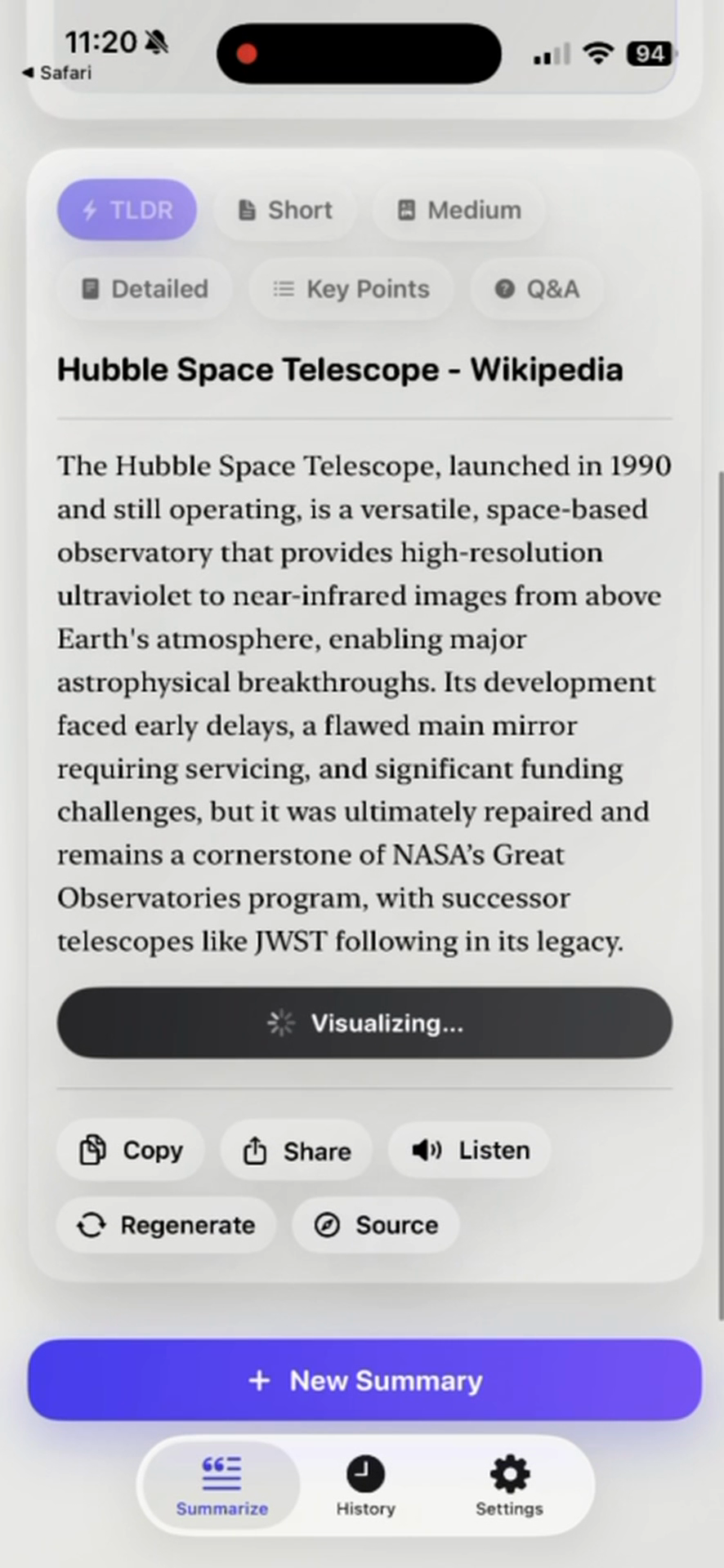
- Choose TLDR, Short, Medium, Detailed, Key Points, or Q&A according to how much context you need.
- Compare important names, figures, quotations, and conclusions with the original pages before relying on the summary.
Sharing a PDF does not verify its contents or the generated summary. Treat the output as a reading aid, not as a replacement for the document.
Example
This workflow example is a verification checklist and is not a captured app result. Imagine a 30-page course handbook with selectable text. A reader could choose Key Points, note the sections named in the result, and then reopen the handbook to verify deadlines, exceptions, and assessment rules against the relevant pages.
The example deliberately does not invent app output. It shows the review process that should surround a generated summary when the source contains details with practical consequences.
What works well
- Use TLDR or Short for orientation before deciding which sections require close reading.
- Use Detailed when the order and context of an argument matter.
- Use Key Points to create a checklist, then attach page references from the original PDF yourself.
- Use Q&A as review prompts, not as proof that every answer is complete.
Limitations
The PDF branch reads selectable text with PDFKit and does not OCR pages inside a PDF. Separately shared images use Vision text recognition, but that is a different branch and does not OCR image-only PDF pages. A scan, protected document, unusual layout, equation, table, footnote, or multi-column page can therefore be missing or flattened in extracted text.
The extension handoff also depends on the installed app version, the source app’s share sheet, and text the PDF exposes to PDFKit. Even when extraction succeeds, generated summaries may omit qualifications or misunderstand the source. Verify important details in the original document.
PDF summarizer questions
Can the app summarize any PDF?
No. The PDF branch depends on text exposed by PDFKit. Image-only pages are not OCRed inside the PDF branch, and some protected or unusually structured documents may not yield useful text.
Does the app have OCR?
There is a separate shared-image branch that uses Vision text recognition. That does not mean the PDF branch OCRs scanned pages inside a PDF.
Is the PDF extension confirmed in the live App Store binary?
The current version 4.2 project and matching version 4.2/build 4.3 release archive implement the handoff. Apple publicly identifies live version 4.2 but does not expose the build or binary identity needed for a conclusive match. Confirm the option appears in your installed version.
Which mode should I choose for a long document?
Start with a shorter mode to map the document, then use Detailed or Key Points when you know what needs closer review. Always return to the source for consequential details.
Related ways to learn
- Follow the full PDF summarizing guide and use the AI summary accuracy checklist for consequential claims.
- Use the research paper workflow when methods, findings, and citations need separate checks.
- Compare the broader AI summarizer workflows on iPhone for links, videos, and pasted text.
- Explore visual summaries after the text summary has been checked.
- Continue to the download handoff after confirming this workflow fits your document.