Summarise Visually is an AI summarizer for iPhone with routes for pasted text, compatible article links, text-readable PDFs, research papers, and supported YouTube videos. Choose one of six formats for the material, then review the generated result against the original source before listening, sharing, saving, or creating a Premium visual explanation.
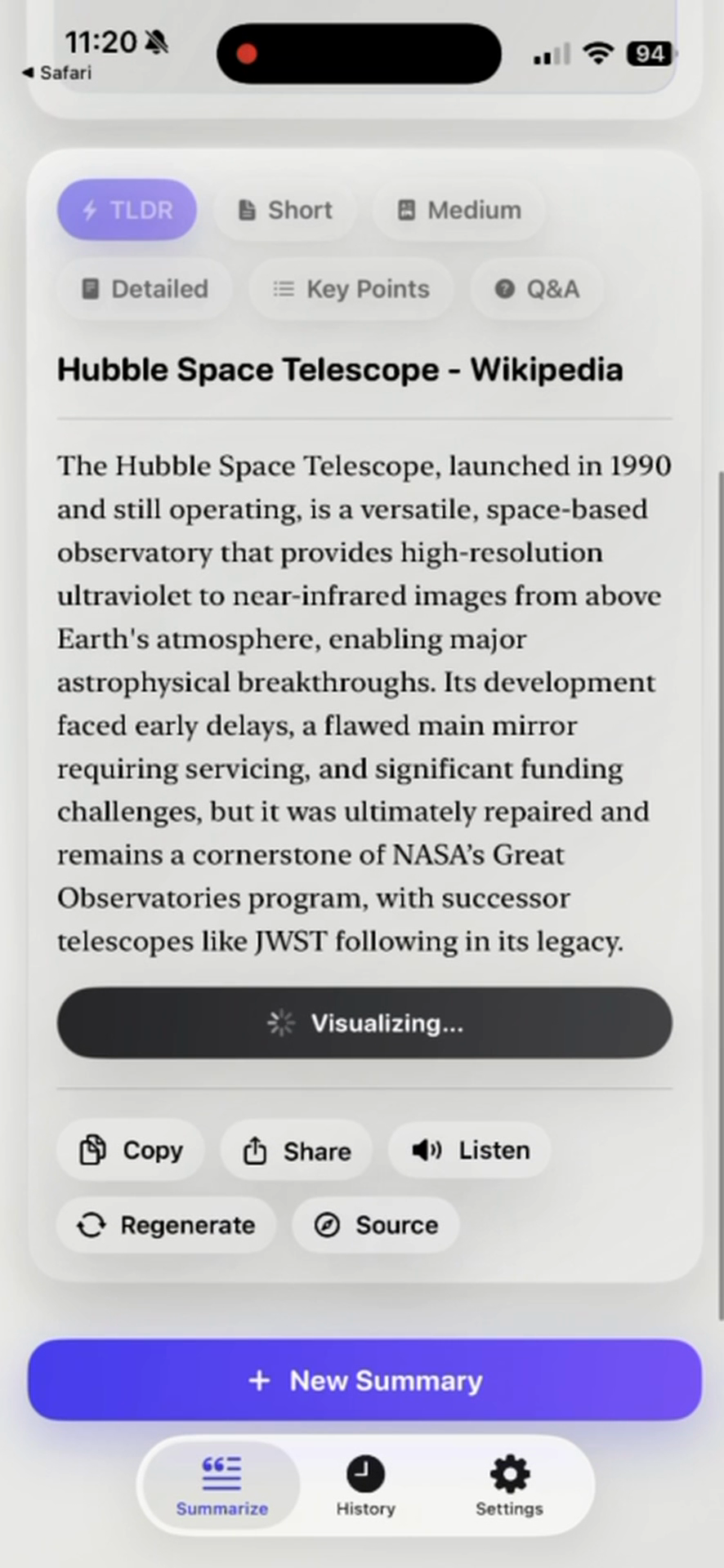
Premium access: In the reviewed current build, initial summarization and mode changes require Premium.
What this workflow does
This page is a source-to-format decision guide. Use it when you know you want an iPhone summary app but have not yet decided whether your material belongs in the text, article, document, video, or visual workflow.
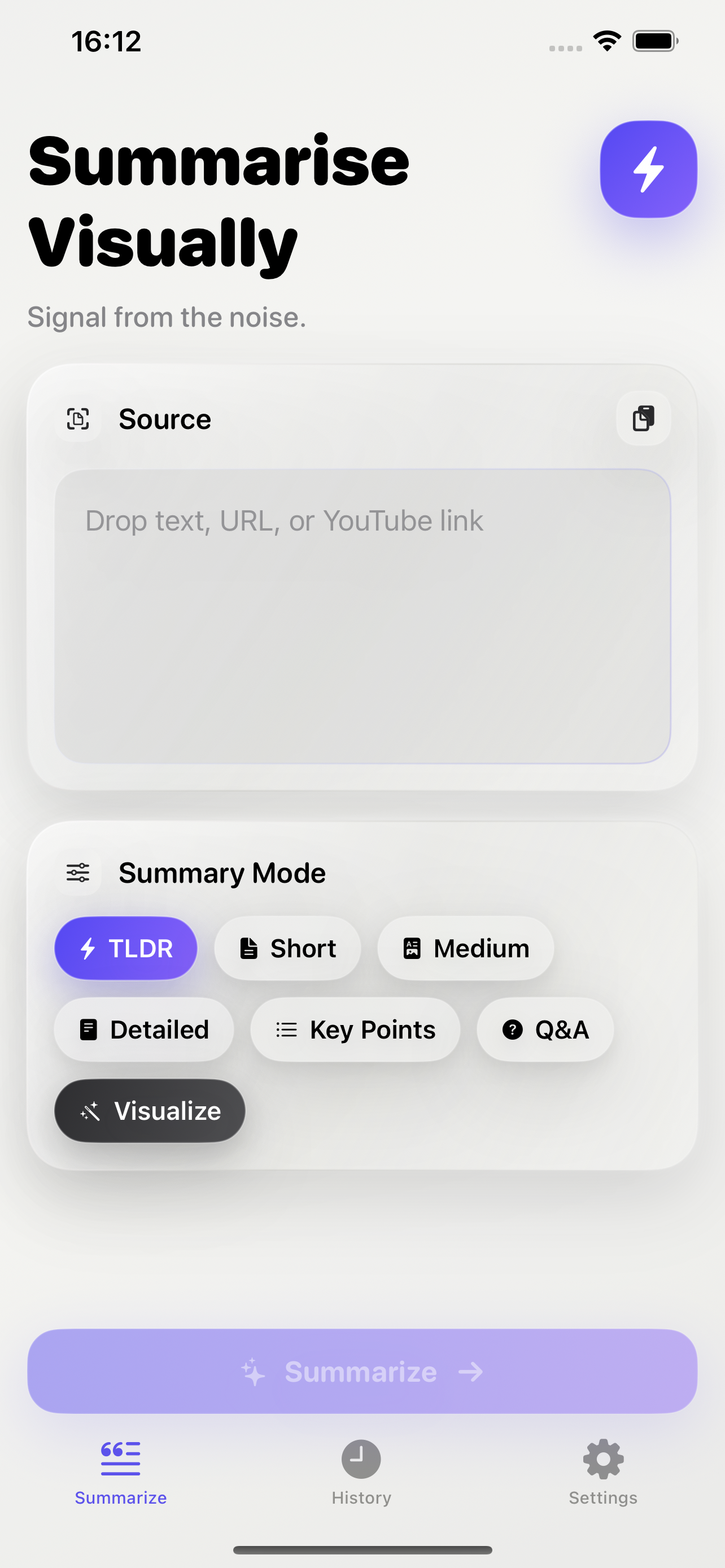
Choose the route from the source, not from the keyword alone:
- Paste text when you control the exact passage and have the right to process it.
- Use the article route for a compatible public webpage, with pasted text as a bounded alternative when extraction is incomplete.
- For a text-based PDF, use the iOS extension handoff only when the document exposes usable text; the availability qualification below applies.
- Treat a research paper as a verification-heavy PDF workflow, not as an automatically validated academic analysis.
- Use a YouTube link when usable transcript content is available.
The current version 4.2 project and matching local version 4.2/build 4.3 release archive implement the PDF extension handoff. Apple public metadata does not expose the build identity, so confirm the option appears in your installed version.
How to use it on iPhone
- Identify the source: confirm a webpage is publicly accessible, a PDF has selectable text, or a video has usable captions before choosing a mode.
- Add the text, compatible URL, document, or supported video link through the relevant entry route.
- Select TLDR, Short, Medium, Detailed, Key Points, or Q&A according to the review task.
- Read the result with the original open and correct your own notes where the two differ.
- Use Copy, Share, Listen, Source, or Regenerate only after deciding the text is fit for that next action.
Visualize comes later. It turns an existing summary into another generated interpretation and is Premium-gated in the current reviewed build.
Example
This workflow example is a route-selection exercise and is not a captured app result. A learner has a public explainer webpage, a scanned worksheet, and a captioned video. The webpage fits the article route, the scan needs a text-readable version before the PDF route is appropriate, and the video first needs a usable transcript check.
After those checks, the learner could use Medium for the webpage’s argument and Key Points for the video’s topic sequence. The example does not assert generated wording, speed, completeness, or successful handling of those imagined sources.
What works well
- Match the entry route to what the source actually exposes: text, a retrievable page, document text, or transcript content.
- Choose TLDR or Short for a first orientation, not as a replacement for consequential details.
- Use Medium or Detailed when relationships and qualifications need more room.
- Use Key Points or Q&A to structure review after confirming that the source was represented adequately.
Limitations
One successful route does not establish another. A readable article URL says nothing about an image-only PDF, and a public video link says nothing about transcript access. Source length, structure, retrieval conditions, and generated-model behavior can all affect the result.
The app does not turn a summary into fact checking. It can produce fluent text that misses a caveat, changes a number, or overstates a conclusion. Keep the original material available for every important decision.
AI summarizer for iPhone questions
What can I summarize on iPhone with Summarise Visually?
The reviewed app exposes routes for pasted text, article URLs, YouTube links, and PDF documents. Each route has separate access and extraction conditions.
What is the difference between the six modes?
TLDR, Short, Medium, and Detailed vary the intended depth. Key Points creates a list-oriented format, while Q&A creates questions and answers for review.
Does a summary replace reading the source?
No. It can help with orientation or review, but the source remains necessary for context, evidence, and verification.
Do I need Premium for visual summaries?
The current reviewed build gates the Visualize action behind Premium. The six text summary modes are documented separately from that post-summary step.
Which workflow should I choose first?
Start with the page for the source you actually have: PDF, research paper, supported YouTube video, or public article. Each page states its own access and verification boundary.
Related ways to learn
- Follow the focused PDF, research paper, YouTube, or article workflow.
- Understand the Premium post-summary step on the visual summary page.
- After choosing a suitable route, continue to the download handoff.