Summarise Visually can summarize a supported YouTube video on iPhone when usable transcript content is available. Paste the video link, choose TLDR, Short, Medium, Detailed, Key Points, or Q&A, then compare the generated notes with the transcript and video before relying on names, quotations, or conclusions.
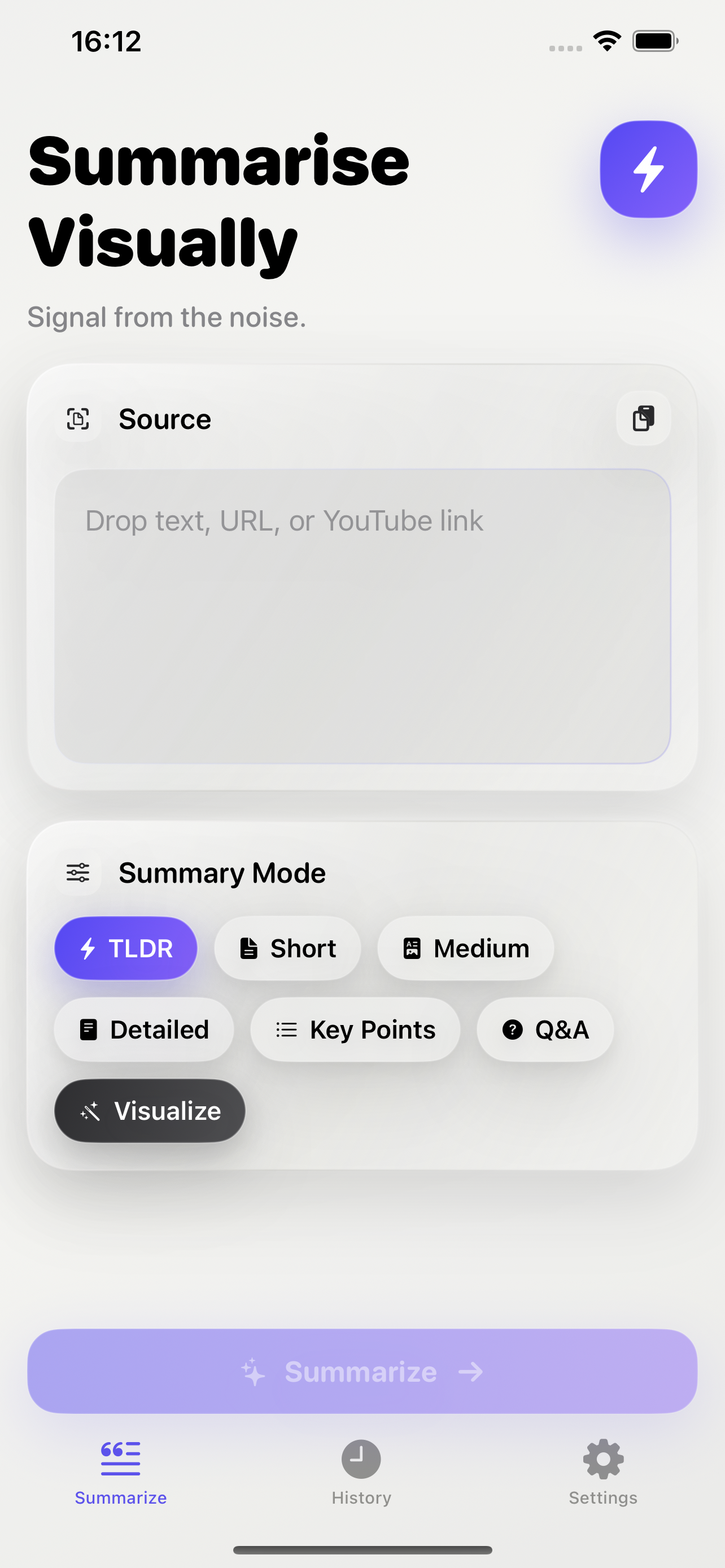
Premium access: In the reviewed current build, initial summarization and mode changes require Premium.
What this workflow does
The video route turns retrievable spoken-word text into one of the app’s written formats. It is transcript-led: the link identifies the source, but the available text determines what can be summarized. YouTube’s transcript guidance says a full transcript can be viewed for videos that have captions, which explains why caption availability is an eligibility check rather than a minor footnote.
Key Points can separate major topics, while Q&A can create prompts for reviewing a lecture or explainer. Those modes do not watch the imagery, inspect on-screen charts, or independently correct the transcript.
How to use it on iPhone
- Open the video’s description or transcript controls and confirm that usable caption text is available.
- Copy the public YouTube link and paste it into the app’s source field.
- Choose a format: TLDR for orientation, Key Points for a topic list, or Q&A for review prompts.
- Compare the result with the transcript and replay sections where wording, tone, or visual context matters.
- If the transcript is absent or inaccessible, stop rather than assuming the app received the full spoken content.
Example
This workflow example is a diagnostic walkthrough and is not a captured app result. Consider a creator-owned ten-minute lesson with manually corrected captions, three clearly labeled sections, and a short conclusion. A reader could select Key Points, then check whether each section appears and whether specialized terms match the captions before keeping the notes.
No particular video URL, generated wording, processing time, supported language, or length limit is asserted here. The example shows how to test an eligible source without implying that every YouTube link behaves the same way.
What works well
- Check caption availability before choosing a mode or expecting a result.
- Use Key Points to map the sequence of a structured talk, then replay the corresponding sections.
- Use Q&A as a prompt list for review, not as an answer key independent of the video.
- Keep the original link beside the notes so visual demonstrations and speaker emphasis remain accessible.
Limitations
Automatic captions can mishear names, numbers, accents, or technical vocabulary. A transcript can also omit non-speech audio and does not describe every chart, gesture, or on-screen demonstration. Those gaps can carry into the summary even when the prose appears coherent.
This page does not promise timestamps, speaker labels, channel monitoring, podcast support, video downloads, every language, a maximum duration, or access to restricted videos. None of those behaviors was established by the reviewed evidence.
YouTube summarizer questions
Does the video need captions or a transcript?
Usable transcript content is the practical boundary documented here. A link alone does not establish that the spoken material can be summarized.
Why might one YouTube link work while another does not?
Caption availability, visibility, removal, regional restrictions, age restrictions, or other access conditions can differ between videos.
Can I use Key Points or Q&A for a video?
Both modes are visible in the current app. Check their output against the transcript and the video, especially where visuals carry meaning.
Does the summary replace watching the video?
No. A written summary cannot preserve every demonstration, visual, tone change, or qualification in the original presentation.
Related ways to learn
- Use the transcript-first YouTube guide and check important notes with the AI summary accuracy checklist.
- Compare link and document routes in the AI summarizer workflow.
- See what happens after text generation in the visual summary workflow.
- Use the article workflow for public webpages and pasted text.
- If the video has suitable transcript content, continue to the download handoff.