To summarize a YouTube video on iPhone, first check that the video offers a usable transcript or captions. Copy the video link, turn the transcript into an outline or question set, then compare the notes with the transcript and replay any important timestamp. Videos without available captions, or with inaccurate automatic captions, may need manual notes instead.
Disclosure and evidence: Heni Hazbay creates Summarise Visually and may benefit if readers download or subscribe. This guide was prepared with AI assistance and reviewed against official YouTube documentation plus current first-party project evidence. It does not rely on a current-device walkthrough or inspection of an App Store-delivered binary.
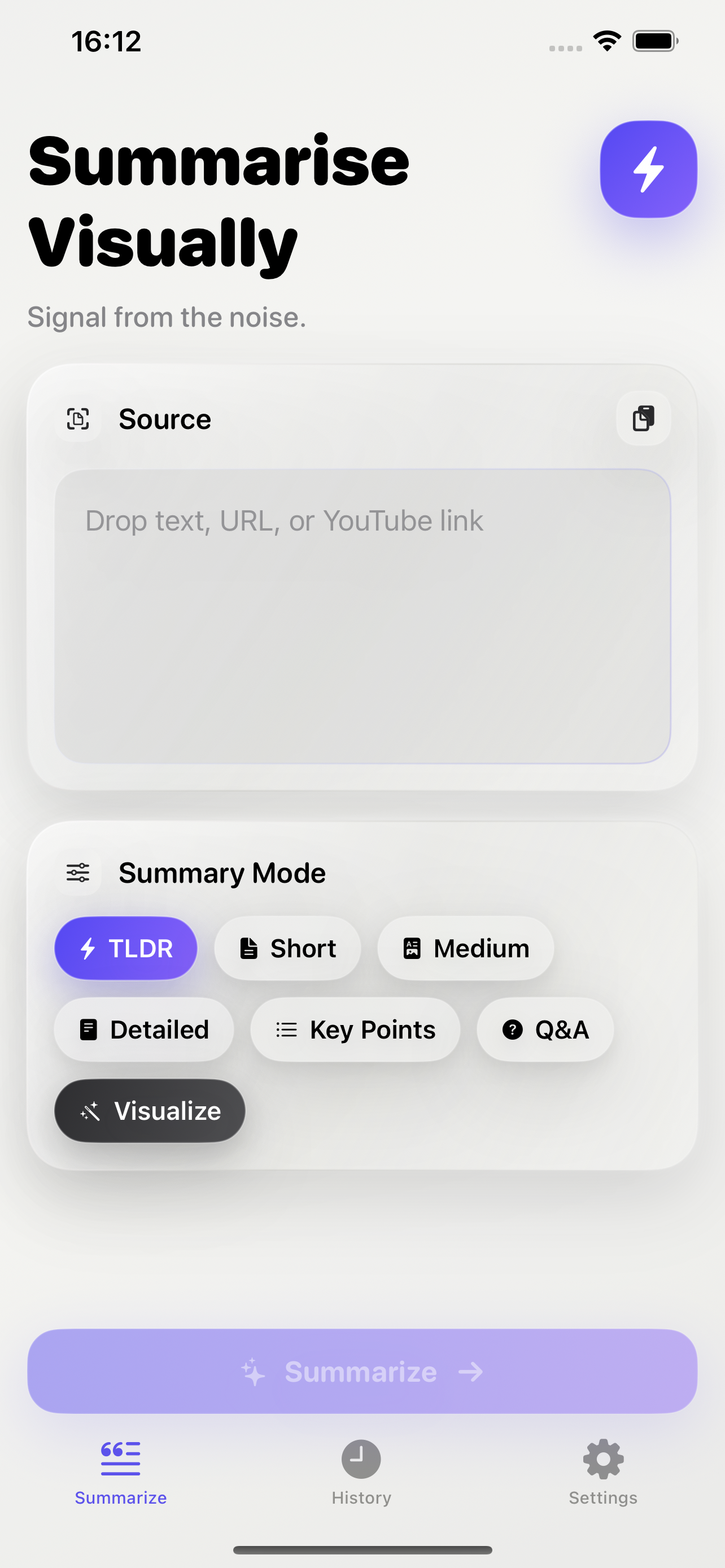
A transcript-first YouTube workflow
- Set the purpose. Choose an overview, topic outline, key claims, or review questions before collecting text.
- Check transcript eligibility. YouTube says a transcript can be viewed for a video that has captions. If a usable transcript is absent, do not pretend that the URL alone supplies the spoken source.
- Inspect caption quality. Check names, technical terms, numbers, and punctuation. YouTube explains that automatic captions use speech recognition and can contain errors caused by pronunciation, accents, dialects, or background noise.
- Segment the material. Record useful headings and timestamps instead of flattening a long video into one paragraph.
- Create notes or questions. Base each item on transcript text that was actually available.
- Verify important points. Reopen the transcript and replay the relevant timestamp, especially when the note depends on a visual demonstration, equation, tone, or on-screen text.
YouTube’s transcript guide says selecting a transcript line can move playback to that part of a captioned video. Its automatic-captioning guidance explains why caption text needs review.
Using Summarise Visually
The current project recognizes YouTube URLs and requests English timed-text. When transcript text is unavailable, the implementation reports an unavailable-transcript error rather than inventing source text. The current extractor also limits the transcript text it passes onward to the first 15,000 characters, so a long video may not be represented in full.
Use a deliberately narrow workflow: copy a YouTube URL with an accessible transcript, paste it into Summarise Visually, choose a current mode, generate the result, and compare it with YouTube’s transcript and the relevant timestamps. Project evidence does not establish support for every public, private, age-restricted, live, members-only, multilingual, or captionless video, so confirm behavior for the specific video and installed app version.
Use the YouTube summarizer product page for current feature and access details. The study hub explains how to turn checked source notes into Key Points or Q&A without treating generated text as verification.
Evidence and review status
The implementation behavior above was established through current source inspection. No current-device walkthrough was completed for either a video with an accessible transcript or an unavailable-transcript case. No exact result, error screen, app build, iOS version, or device was captured for this guide. Confirm device behavior where the workflow depends on transcript access, link handling, or the installed app version.
Bounded example, not a product result
A future device check could use an original three-minute explainer with manually reviewed English captions and three visible sections. The evidence record should preserve its URL, duration, caption type, transcript, timestamps, device, build, selected mode, unedited result, and a timestamp-by-timestamp comparison. This guide does not invent that video or output; it defines a reproducible test boundary.
How to check the result
For each important note, keep three fields:
| Note | Transcript line and timestamp | Check |
|---|---|---|
| Main claim | Exact caption segment | Does the note preserve conditions and qualifiers? |
| Name, term, or number | Exact caption plus replay | Did automatic captions mishear it? |
| Visual explanation | Timestamp plus frame | Does the note omit information shown only on screen? |
Replay the source moment when the transcript is unclear. A transcript is an aid to checking, not necessarily a verbatim record. The guide to checking AI summary accuracy provides a reusable claim-by-claim review method.
YouTube transcript and summary limitations
- A transcript can be absent, delayed, incomplete, in an unsupported language, or inaccessible to the app even when the video plays in YouTube.
- Automatic captions may misrepresent speech, names, numbers, or specialist vocabulary.
- The current project requests English timed-text and limits extracted text to 15,000 characters; a device check should document what a reader sees at those boundaries.
- A text summary cannot preserve every visual demonstration, equation, gesture, edit, tone cue, or piece of on-screen text.
- Notes generated from captions are not independent fact checking of the speaker’s claims.
Frequently asked questions
How do I check whether a YouTube video has a transcript?
Open YouTube’s transcript interface when it is available for the video. Selecting a transcript line should let you inspect the corresponding playback moment.
Can every YouTube video be summarized from its link?
No. Link recognition does not guarantee that usable transcript text is available. Access, captions, language, video type, and platform behavior can all affect eligibility.
Are automatic captions reliable enough for study notes?
They are a starting point, not a source to accept without checking. Replay names, technical terms, quantities, and passages affected by noise or unclear speech.
How should I check a video summary against timestamps?
Attach a timestamp to each consequential note, reopen the transcript there, and replay the moment. Inspect the screen as well when meaning depends on a visual.
What should I do when a transcript is unavailable?
Take manual notes from the video or use a transcript route you can verify and are permitted to use. Do not treat a generated answer as though it came from unavailable source text.
YouTube workflow sources
- YouTube Help, “View video transcripts”. Accessed July 13, 2026.
- YouTube Help, “Use automatic captioning”. Accessed July 13, 2026.
- First-party source evidence: the inspected
ContentExtractorrecognizes YouTube URLs, requests English timed-text, reports transcript unavailability, and limits extracted text. Device behavior should be confirmed where route availability matters, following the Methodology.
Related reading: how to check AI summary accuracy, the study hub, visual summary workflow, Methodology, and Editorial Policy.