An AI lecture summarizer can turn lecture material into useful notes when the source is already available as text. Paste your own notes, share a text-bearing lecture PDF, or use an eligible YouTube lecture with an accessible transcript. Ask for an outline, key points, or study questions, then check definitions, examples, numbers, and conclusions against the original material. It should not be treated as a lecture recorder or transcription service.
Publication and evidence note: Heni Hazbay creates Summarise Visually and may benefit if readers download or subscribe. AI assistance supported research, drafting, and editing. Product statements were reviewed against current first-party project evidence, while study and platform statements were checked against the cited primary or authoritative sources. Heni authorized publication on July 15, 2026. This guide does not claim a current-device lecture test, audio capture, or transcription result.
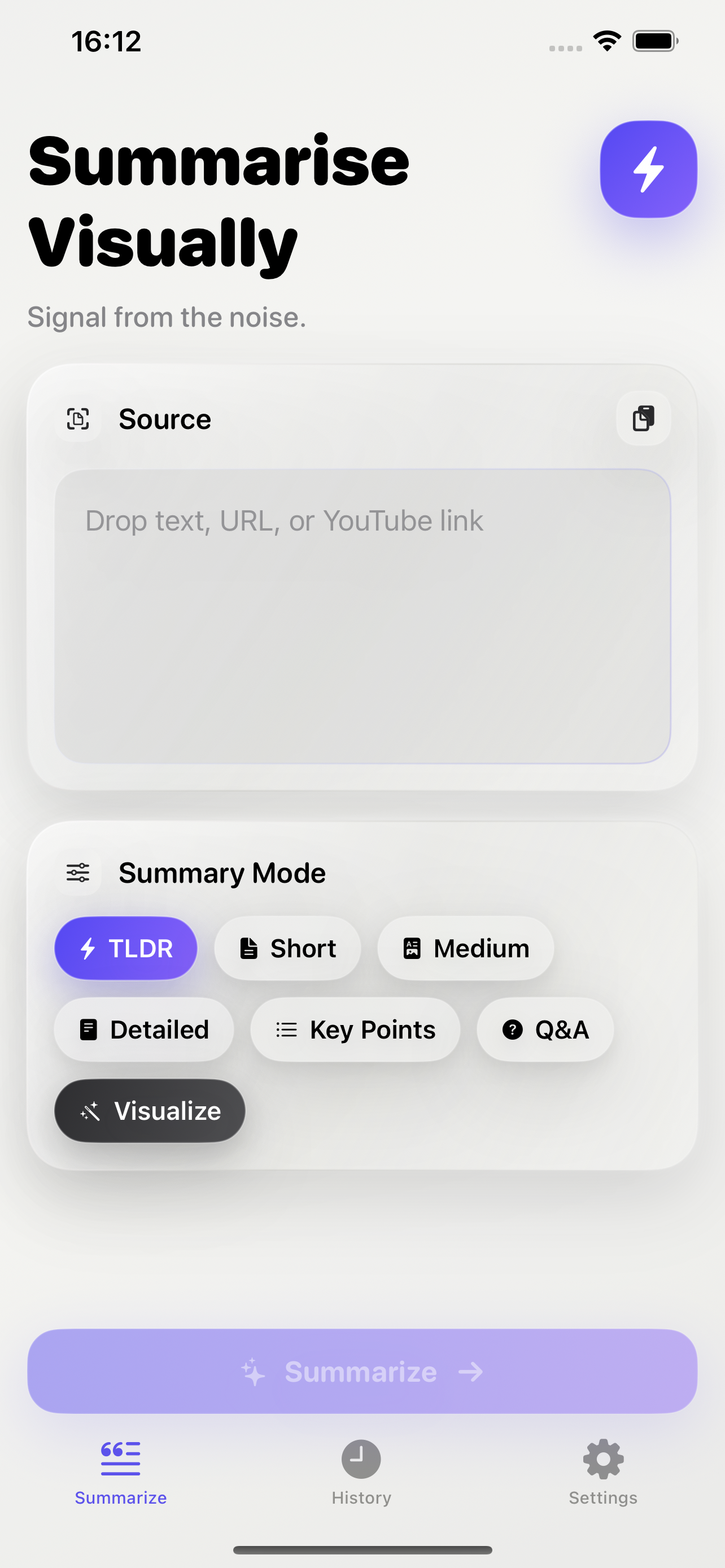
What an AI lecture summarizer should receive
Start with text you can reopen and inspect. That may be your typed lecture notes, selectable text from a lecturer-provided PDF, or transcript text made available for a captioned YouTube lecture. These routes create a source trail: when a generated note looks doubtful, you can return to the relevant paragraph, page, transcript line, or timestamp.
Do not assume that an app marketed around summarization can listen to a lecture. The verified Summarise Visually evidence supports supplied text, a particular PDF extension handoff, and a bounded YouTube transcript route. It does not support claims that the app records a class, captures microphone audio, produces live captions, or transcribes an audio file. If the lecture exists only as speech, first use a lawful and institution-approved recording or transcription process outside this workflow, taking consent, privacy, and course rules into account.
For a YouTube lecture, Google says its transcript interface is available for videos that have captions. Its guide to viewing transcripts also explains that selecting a transcript line can move playback to that part of the video. Availability of a playable video is not the same as availability of transcript text to another app.
A source-first lecture note workflow
- Define the learning target. Decide whether you need a short overview, a concept map, an exam review sheet, or questions for self-testing. One clear purpose produces more usable notes than a vague request to “summarize everything.”
- Choose one supported source. Use pasted notes, a lecture PDF with selectable text, or a YouTube lecture whose transcript is accessible. Keep the original open.
- Clean obvious source errors. Correct misspelled names and broken equations in your own notes. In automatic captions, inspect technical vocabulary, quantities, and speaker changes before treating the transcript as dependable text.
- Preserve the lecture structure. Keep module titles, topic headings, definitions, worked examples, objections, and lecturer emphasis separate. A flat paragraph hides the relationships you will later need to recall.
- Generate one useful representation. Select Detailed for a fuller prose pass, Key Points for a compact topic map, or Q&A for candidate retrieval prompts. Do not ask one output to serve every study purpose.
- Attach source locations. Add a page, slide number, note heading, transcript phrase, or timestamp to each consequential item. The location is what makes later verification efficient.
- Correct before condensing again. Repair mistakes from the source, not from another AI answer. Only after the content is checked should you produce flashcards, a one-page review sheet, or a shorter summary.
The Cornell Note Taking System separates notes, cues, and a summary, and asks learners to review and recite rather than merely collect text. You do not have to copy its page layout exactly. The useful principle for an AI-assisted workflow is separation: source notes remain visible, prompts remain distinct from answers, and the final summary does not replace the original record.
Using Summarise Visually with lecture material
For pasted lecture notes, provide only text you are permitted to process. Retain headings and labels such as “definition,” “example,” “exception,” and “exam emphasis.” These markers help you review the generated structure, but they do not make the result correct automatically.
For a text-bearing lecture PDF, the current project uses the iOS Share or Action extension route. Both inspected extension controllers accept UTType.pdf; the PDF branch uses PDFKit locally to read available selectable text and transfers that text through the app group to the main app. Apple documents the PDFDocument.string property used to obtain a document’s text. This route is not evidence of a home-screen document picker, whole-slide visual understanding, or OCR for scanned pages.
For a YouTube lecture, the current extractor recognizes a YouTube URL and requests English timed-text. It reports an unavailable-transcript condition rather than treating missing text as present, and it limits extracted transcript text to the first 15,000 characters. A long lecture can therefore be partial even when an eligible transcript exists. Automatic captions also need review: YouTube’s caption guidance notes that speech recognition can misrepresent content because of pronunciation, accents, dialects, background noise, or overlapping speakers.
Current first-party evidence shows modes including Detailed, Key Points, and Q&A. It does not establish that these modes identify what will appear on an exam, understand a lecturer’s intent, evaluate a claim, or produce pedagogically valid questions. Apple’s public lookup response reports the public app version, but it does not expose a binary hash that independently proves every inspected source behavior is in the installed App Store build. Confirm the input route in your installed version.
Turn the result into study material
Separate the generated result into four categories:
| Category | What to capture | What to verify |
|---|---|---|
| Core concept | One precise statement | Does it preserve the lecturer’s scope and conditions? |
| Definition | Term plus distinguishing features | Is wording accurate, and is a nearby example being confused with the definition? |
| Example | Situation, steps, and outcome | Does it illustrate the concept without being generalized into a rule? |
| Open question | A point you cannot yet explain | Is the answer in the lecture source, assigned reading, or neither? |
After correction, convert selected notes into questions that require an answer, not recognition. Try answering without looking, then compare your response with the checked notes and source. The evidence review by Dunlosky and colleagues rated practice testing and distributed practice highly across the learning techniques they evaluated. That research did not test Summarise Visually or prove that automatically generated questions are correct. It supports the learning activity only after the prompts and answers have been checked.
Limits and verification
An AI lecture summarizer is an organizational aid, not an authoritative record of a class. Verify the result at the level of individual claims.
- Pasted notes inherit their gaps. If you missed a caveat, diagram, question, or transition while taking notes, a generated summary cannot recover it reliably.
- The PDF route reads text, not the full teaching design. Columns can flatten, equations can lose notation, and diagrams, arrows, annotations, or slide layout can carry meaning that extracted text does not preserve. Image-only PDF pages are not OCRed by the verified PDF branch.
- Transcript access is conditional. A video may play while an accessible transcript is absent, incomplete, in another language, or unavailable to the extractor. The current route requests English timed-text and caps supplied transcript text at 15,000 characters.
- Captions can be wrong. Replay names, dates, formulae, specialist terms, and any passage that changes a conclusion. Check the screen when the lecturer points to a graph, code sample, demonstration, or equation.
- Generated questions can contain their own mistakes. A plausible prompt may assume a false premise or pair a correct question with an unsupported answer.
- No recording or transcription is claimed. This workflow begins only after text exists. It does not authorize recording a class or bypass institutional, privacy, copyright, or accessibility rules.
Use a small verification ledger for the items that matter most:
| Generated item | Source location | Status | Correction |
|---|---|---|---|
| Definition or formula | Note heading, PDF page, or timestamp | Supported, ambiguous, or wrong | Exact corrected wording |
| Lecturer’s main claim | Paragraph or transcript span | Complete or missing a condition | Restored condition |
| Example | Slide/page/timestamp | Representative or exceptional | Correct category |
| Number or date | Exact source line | Matched or mismatched | Verified value |
The AI summary accuracy guide provides a fuller claim-by-claim process. For the input-specific boundaries, see the PDF guide and the YouTube guide.
Frequently asked questions
Can an AI lecture summarizer record and transcribe my class?
Not in the workflow documented here. Summarise Visually is not presented as a lecture recorder, live-listening tool, or audio transcription service. Start with text you already have permission to use.
Can I summarize a lecture PDF?
You can use the verified iOS extension route when the PDF exposes selectable text. Scanned pages, diagrams, equations, tables, and complex slide layouts may be missing or flattened, so compare the result with the original pages.
Can I summarize a YouTube lecture from its link?
Only when usable transcript text is available to the route. The current implementation requests English timed-text and limits extracted text to 15,000 characters. Link recognition alone does not guarantee a complete lecture source.
Which summary mode is best for lecture notes?
Use Detailed for a fuller first pass, Key Points for a compact map, or Q&A for candidate self-test prompts. The best choice depends on your task, and every consequential item still needs source checking.
How do I know whether my lecture summary is accurate?
Attach each important note to a source location. Check definitions, conditions, numerical values, examples, and conclusions first. Mark unsupported or ambiguous items rather than silently accepting fluent wording.
Sources and publication evidence
- YouTube Help, “View video transcripts”, and “Use automatic captioning”, for transcript availability and caption-quality boundaries.
- Apple Developer Documentation,
PDFDocument.string, for the PDF text property used by the verified project branch. - Cornell University Learning Strategies Center, “The Cornell Note Taking System”, for a source, cue, recitation, and review structure.
- Dunlosky and colleagues, “Improving Students’ Learning With Effective Learning Techniques”, for the bounded discussion of practice testing and distributed practice.
- Apple, iTunes Lookup response for Summarise Visually, for public version metadata, not binary identity.
- First-party project evidence supports the qualified supplied-text, PDF, YouTube transcript, and mode statements above. No current-device lecture test, audio capture, transcription test, or accuracy benchmark is claimed. Review standards are documented in the Methodology and Editorial Policy.
Related reading: study workflows, AI summarizer for iPhone, PDF summarizer for iPhone, YouTube summarizer for iPhone, and how to use Key Points and Q&A for study.